


Try FlexSim for free: How to sign up
FlexSim is provided by Autodesk. You can request the 30-day trial version directly via the Autodesk website. This guide walks you through the entire sign-up process.
What you should know before you start
- The trial version is valid for 30 days from the date of download
- FlexSim is available as a 64-bit version for Windows
- An Autodesk account is required to sign up; this is created automatically during the process
- A telephone number may be required for verification; a security code will be sent to this number via text message or phone call
Guide in 6 steps
Step 1: Open the Autodesk trial version page
The sign-up process begins via the trial version link on the Autodesk website.
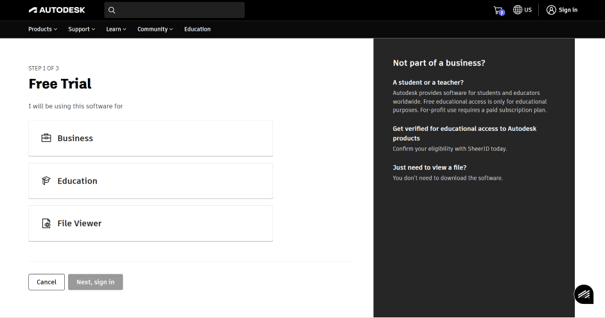
Step 2: Confirm the notice regarding the US website
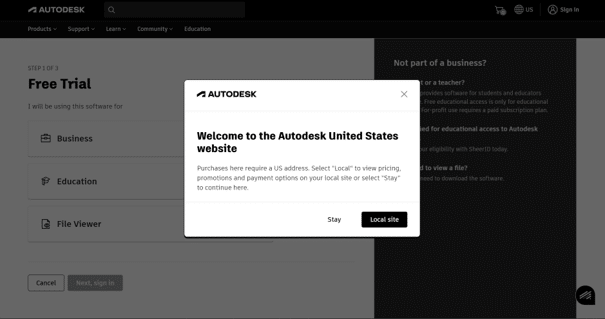
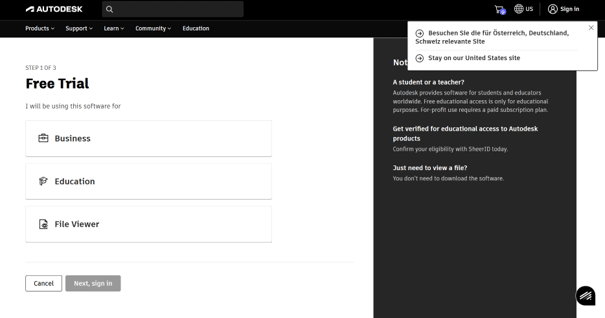
When you open the link, a notice regarding the US Autodesk website often appears. Click on Stay on our United States site here to continue the process. You will be asked to specify your country and region separately later in the form; the selection you make at this stage has no bearing on that.
Step 3: Specify the intended use
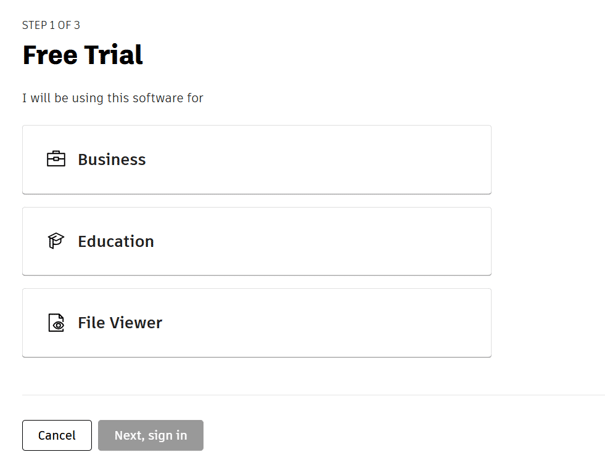
Select what FlexSim will be used for. For businesses, select the Business option and continue by clicking Next, sign in.
Step 4: Enter your email address
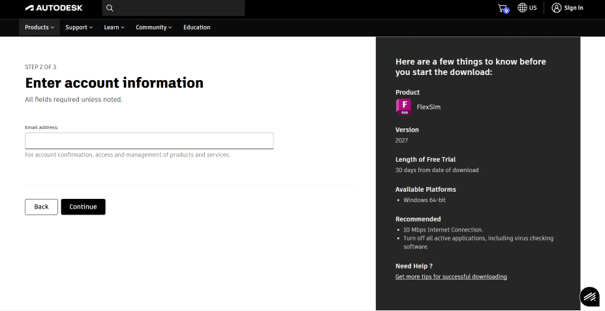
Enter your email address and confirm by clicking Continue. An overview of the trial version is displayed on the right-hand side, including the product, version, trial duration and supported platform.
Step 5: Log in or create an Autodesk account
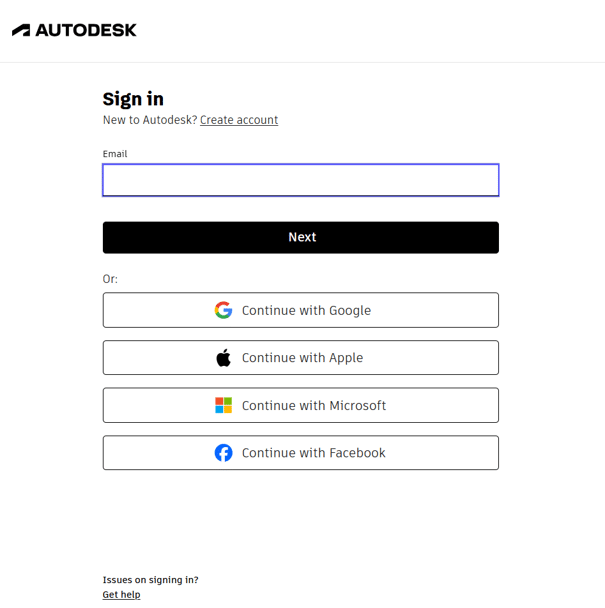
Log in with an existing Autodesk account using your email address; alternatively, you can log in via Google, Apple, Microsoft or Facebook. If you do not have an existing account, create a new one via Create account.
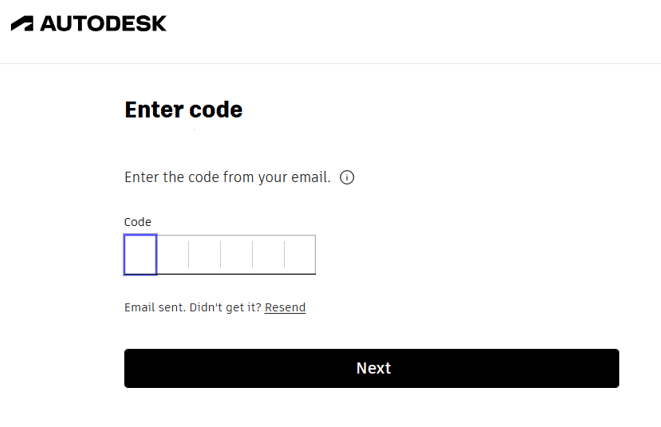
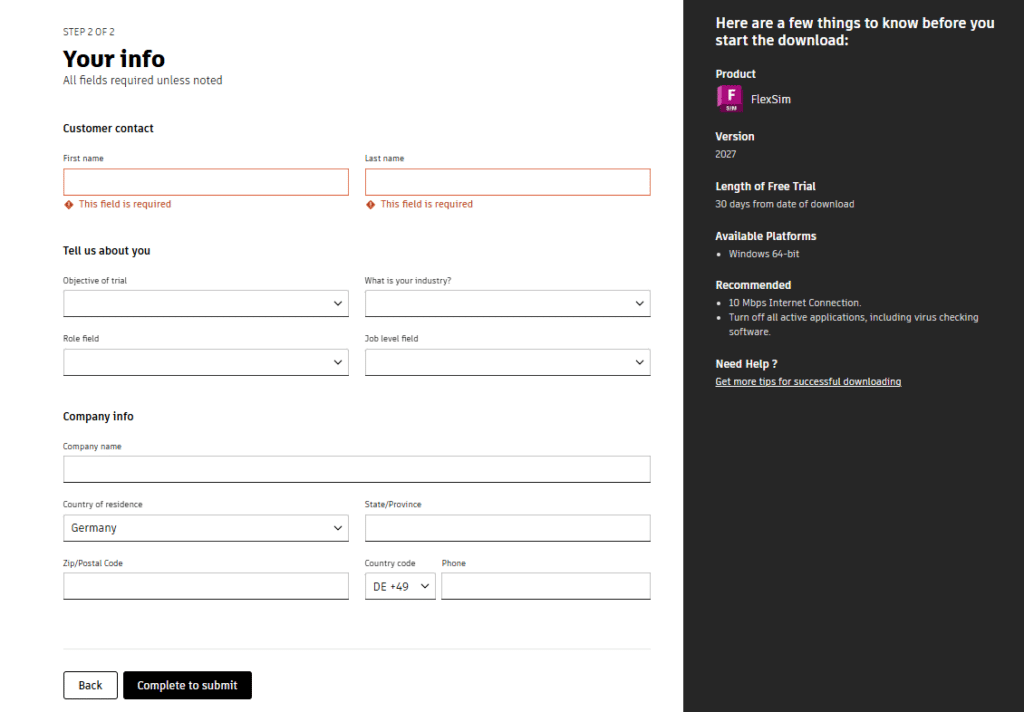
Next, fill in the requested details regarding your contact information, usage context, sector, role and company. Depending on the account, telephone verification via text message or phone call may also be required. Complete the process by clicking Complete to submit.
Step 6: Start the installation
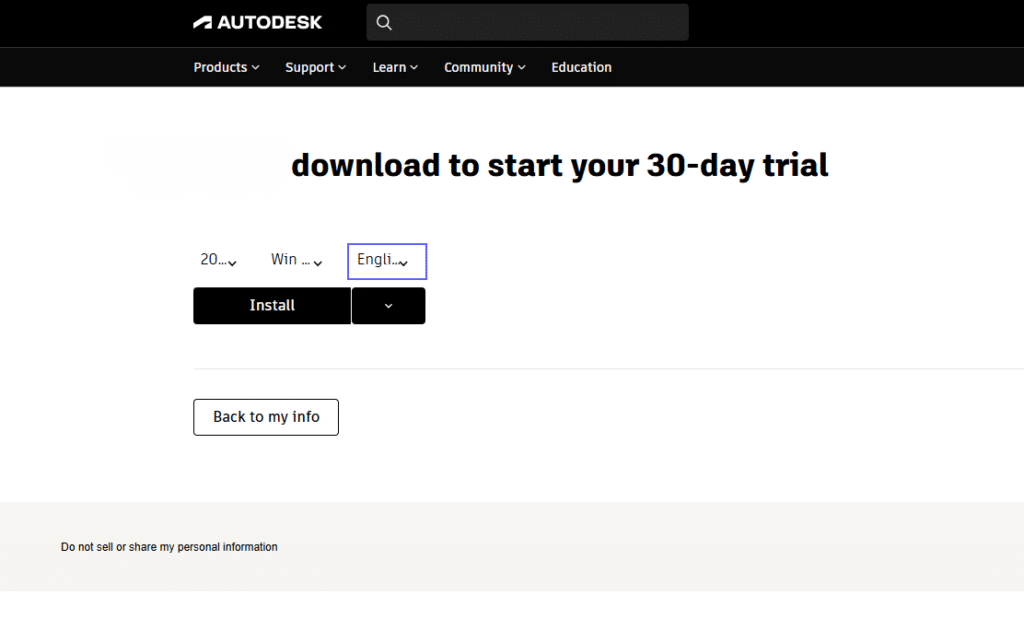
On the following download page, the options for the 30-day trial version are already preset. Click Install to start the download and installation. The trial period begins on the day of the download.
Autodesk will also send a confirmation email to set up your account; this is required for further access to FlexSim.
Who is this relevant for?
These instructions are aimed at professionals in production, logistics, production planning and industrial engineering who wish to try out FlexSim before deciding to purchase it.
Support with set-up
SimPlan is the distribution partner for FlexSim in Germany. If you have any questions about the trial version, your first model or licensing, please do not hesitate to contact us.